What are Connected Maps? #
These are multiple GoodMaps maps that are connected by shared doors and pathways. You can use the app to get from one location to another in a seamless routing experience!
How do know if I am in a Connected Map? #
Info Tab #
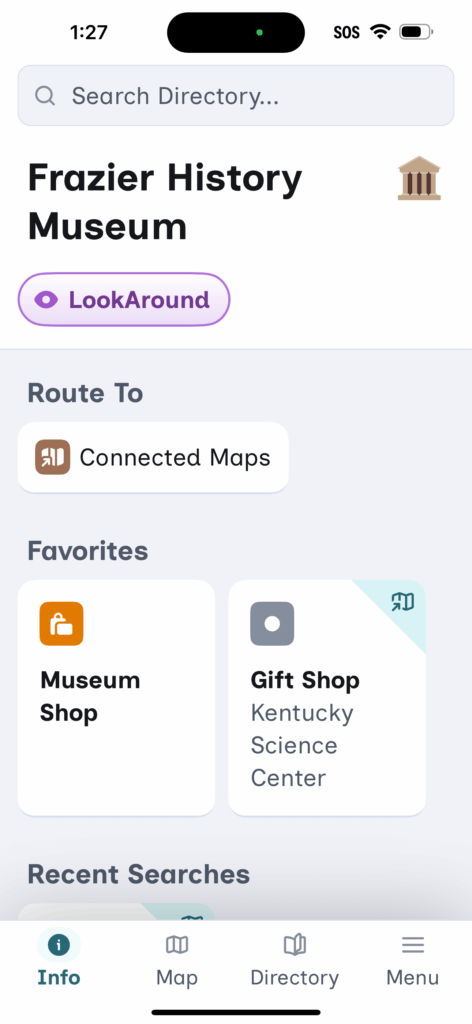
Now, when you check in to your map, the Info tab includes a new Route To section with an option to select Connected Maps.
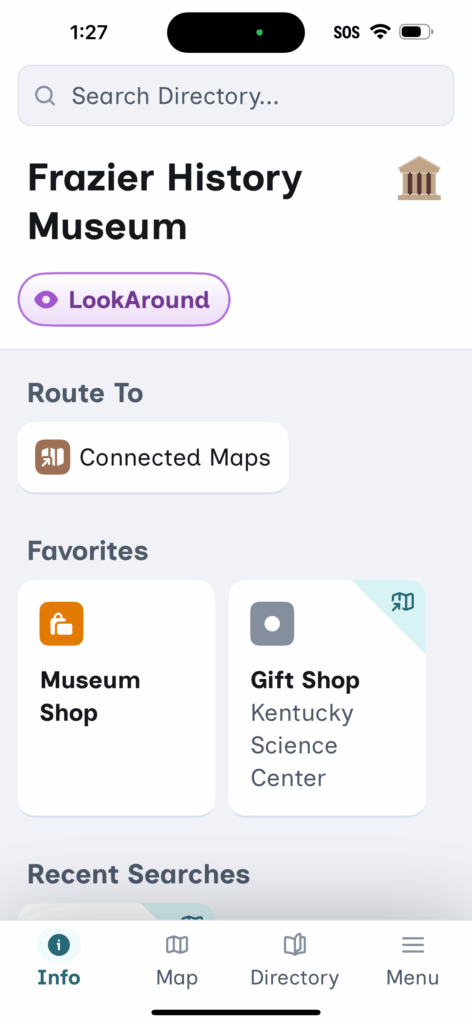
When you tap on that, it will list all the maps belonging to that network!
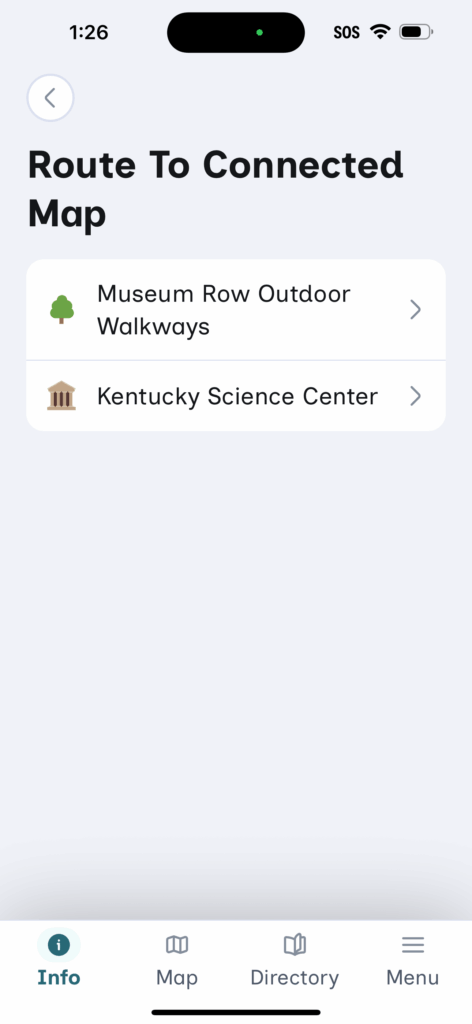
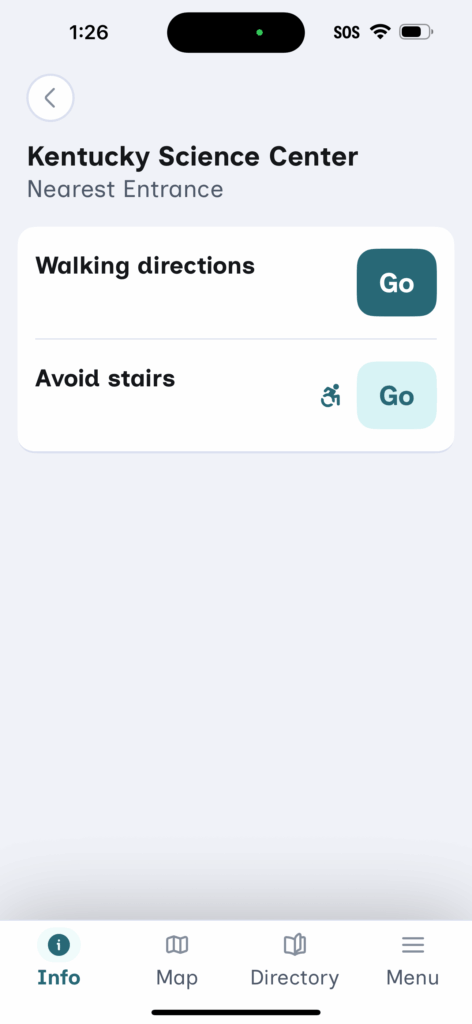
You can route to the nearest entrance of any of those networked maps by tapping on the map name and clicking Go.
Directory #
When you check in to the map and open the Directory, you’ll see a new filter – Current Map or Connected Map – when you start searching for a destination.
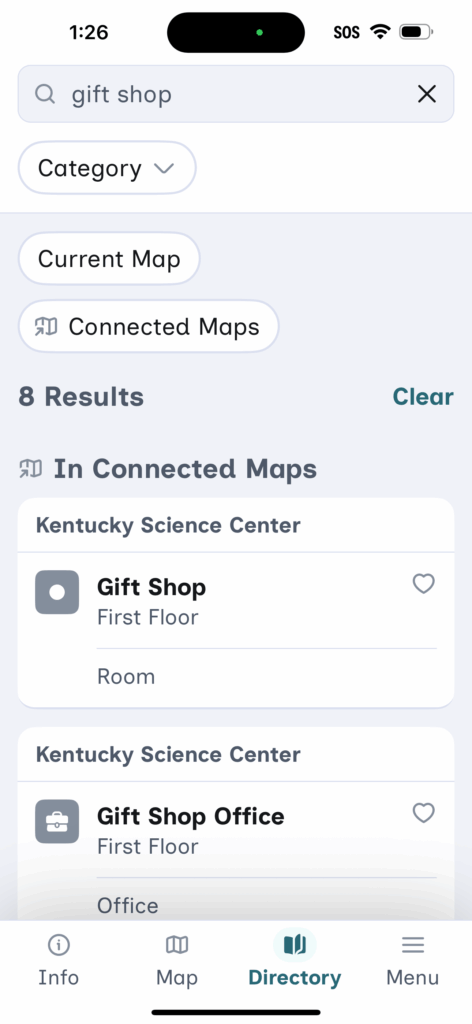
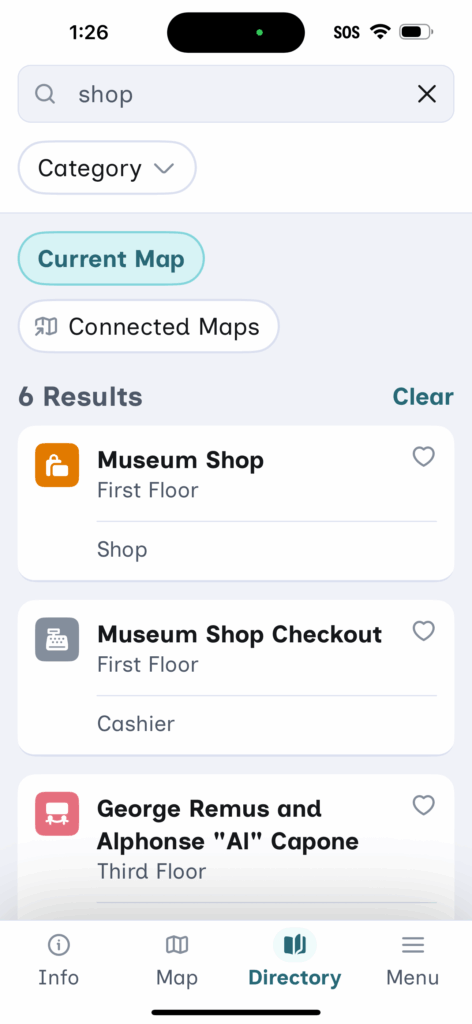
You can use this filter to help narrow down the destinations you are looking for! Once you find your destination you can then start a route as normal.
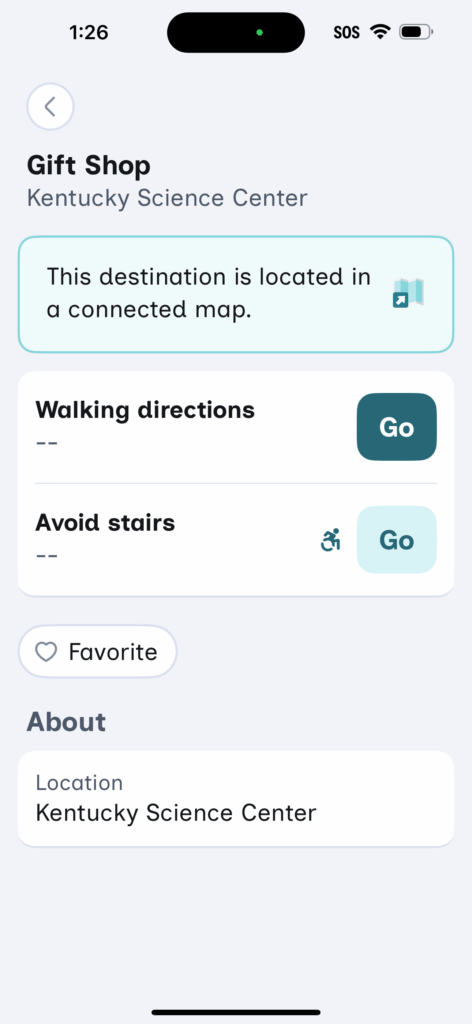
What is the Routing Experience like? #
To the Nearest Entrance or Specific Destination #
- Check in to a map
- Navigate to the Info tab and tap Connected Maps
- Select the map you would like to route to
- Click Go for either Start Walking or Avoid Stairs
- You will localize where you are in the current map
- Then follow the steps as they are given to you
- When you move between maps, you are automatically checked in to the new map
If the entrance to the new map you are in, is not your final destination, you will need to re-localize and continue your route.
Favorites & Recent Searches #
You can favorite destinations in a connected map, and they will appear in your favorites list on the Info tab alongside favorites from the map you are currently on.
Your recent searches for Connected Map destinations will also appear in your Recent Searches list on the Info tab.
If a destination is on a connected map, a small icon in the upper-right corner of its tile indicates that it is not on your current map and shows which map it belongs to.