
There may be times when a map owner needs to let users know about changes, updates, or closures. To support this, we’ve created an announcement system that allows map owners to add, edit, and archive announcements. To see what this looks like for users with Alerts, check out the related article here.
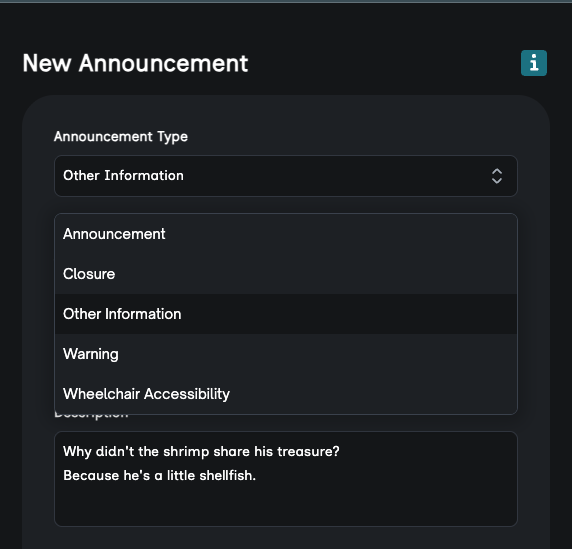
Types of Announcements #
- Announcement
- Closure
- Other Information
- Warning
- Wheelchair Accessibility
Styles of Announcements #
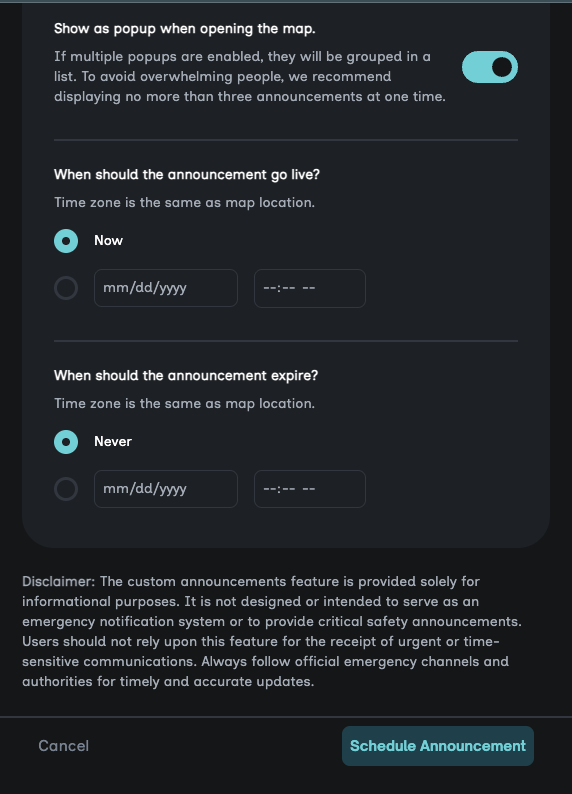
- Constant: These are alerts that will remain visible until they are archived.
- Scheduled: These alerts have either a specific start date, end date, or both.
- Pop Ups: These alerts can be scheduled or constant and will display as a pop up when the user opens the map for the first time.
Where are the Announcements Located in Studio #
- Sign in to your studio account
- Click on the … link next to the name of the building that you want to add an announcement
- A menu will pop up, click Edit Building
- This will open a side sheet on the right
- From there you should click Announcements
- From there you can add, edit, archive, or delete announcements
How to Add a New Announcement #
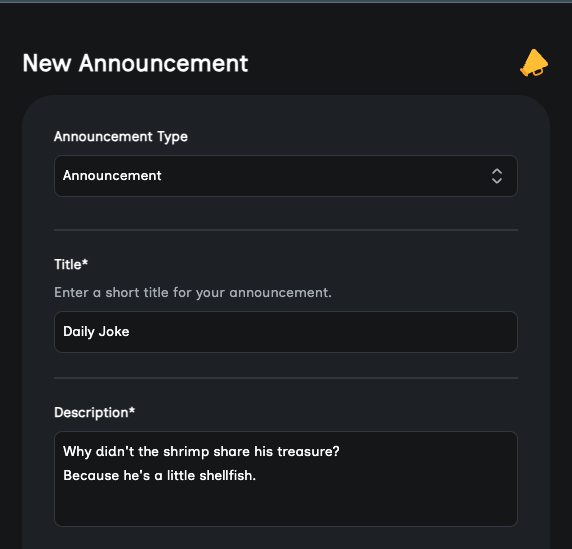
- From the Announcements panel, click + New Announcement
- Select a type
- Add a title and description
- Decide if you want the announcement to be a pop up using the toggle
- Decide if you want the announcement to be scheduled with a start and end date
- Once all this is filled out, you can add the announcement
How to Edit An Announcement #
You can edit announcements that are Active, Scheduled, or Archived.
- From the Announcements panel, find the announcement you wish to edit and click the …
- Then click Edit Announcement
- Make your changes and click save
How to Archive #
You can archive Active and Scheduled announcements.
- From the Announcements panel, find the announcement you wish to edit and click the …
- Then select Archive Announcement
You can also resume an announcement from the Archive Announcement section.
How to Delete #
- From the Announcements panel, select Archived
- Then click the … link for the announcement you want to delete
- Then click Delete
Note: You cannot restore an announcement once deleted.