
Route segments can now be adjusted.
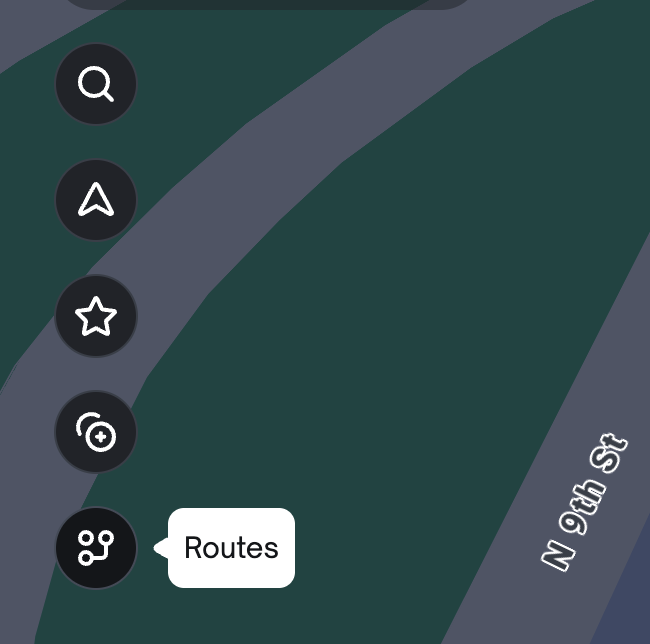
If you have permission to edit routes, you’ll see a Routes button on the left-hand side of Studio. Hover over it to see the “Routes” tooltip, then click to open the route network and start making changes.
When you click the Routes button for the first time, the route network will appear on your map.
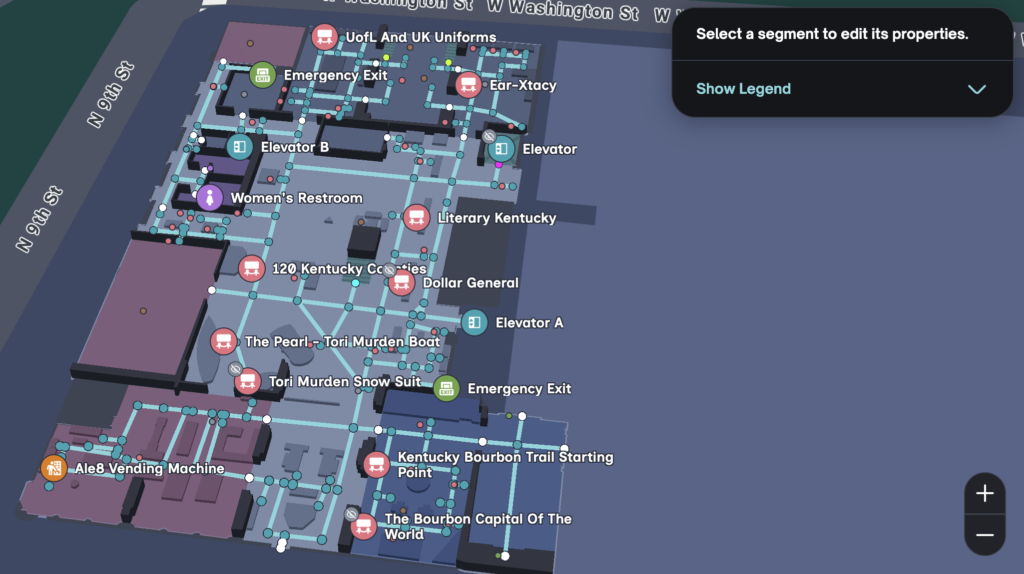
Legend #
If you click Show legend, you’ll see an explanation of what each colour represents.
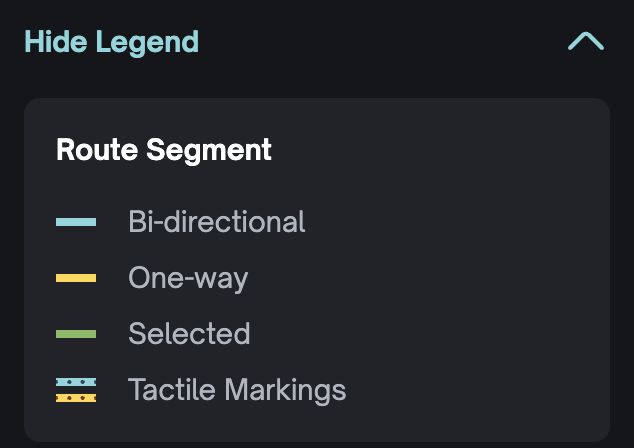
Route Segment #
This shows what each route segment means:
- Bi-directional: The segment can be used in both directions.
- One-way: The segment can only be used in one direction.
- Selected: You are currently editing this segment.
- Tactile markings: The segment has accessible tactile markings for users with low vision.
Points #
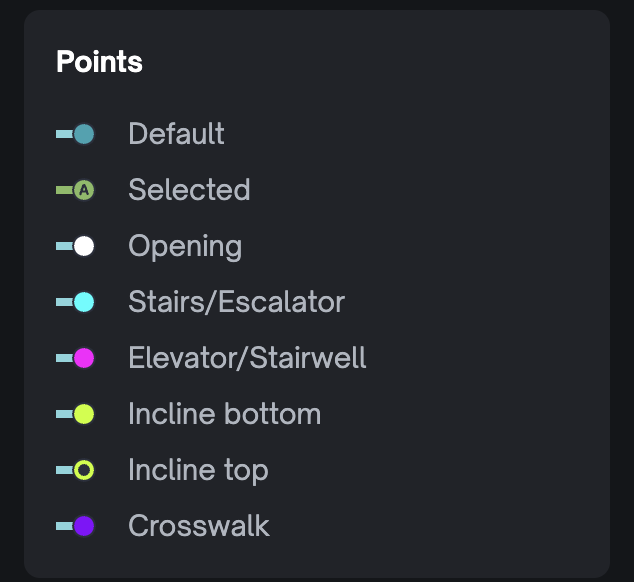
These are called node points. Important ones include:
- Openings
- Stairs/escalator
- Elevators/stairwell
- Incline bottom
- Incline top
- Crosswalk
Status #
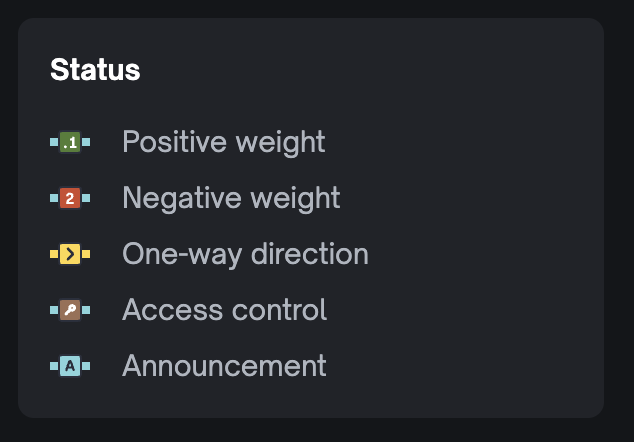
Status shows extra information about each route segment:
- Positive weight: This segment is preferred and more likely to be used.
- Negative weight: This segment is discouraged and less likely to be used.
- One-way direction: This segment can only be travelled in one direction.
- Access control: This segment requires special access, such as a security badge (coming soon).
- Announcement: This segment includes an audio or text announcement (coming soon).
How to Adjust a Route Segment #
To adjust a route segment, first click the segment you want to change. A new side menu will then appear, where you can review and update that segment’s details.
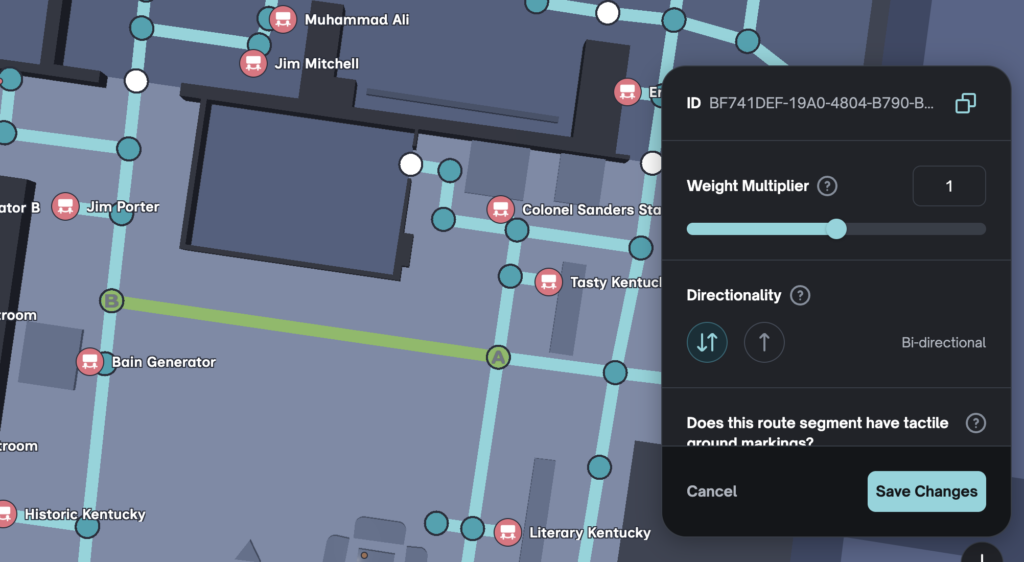
Weight Multiplier #
You can use the weight multiplier to tell the algorithm how strongly to prefer or avoid a segment. The lower the weight, the “lighter” the segment is and the more likely it is to be chosen. The higher the weight, the “heavier” the segment is and the less likely it is to be used.
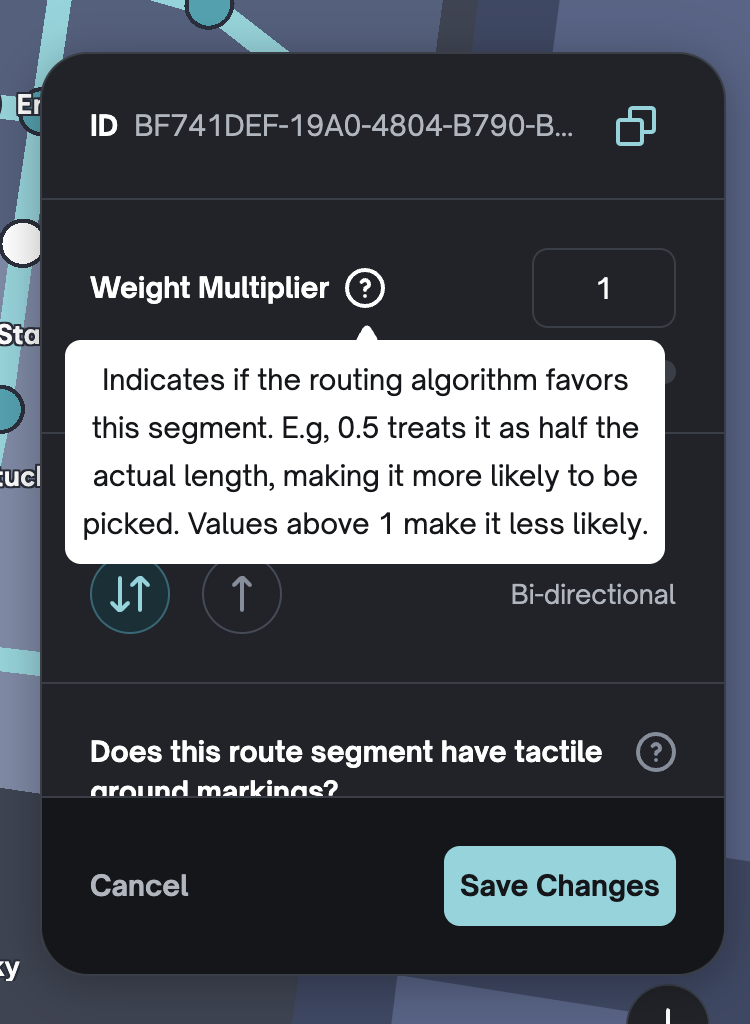
Directionality #
You can choose whether a route segment is bi-directional (can be used in both directions) or one-way (can only be used in a single direction).
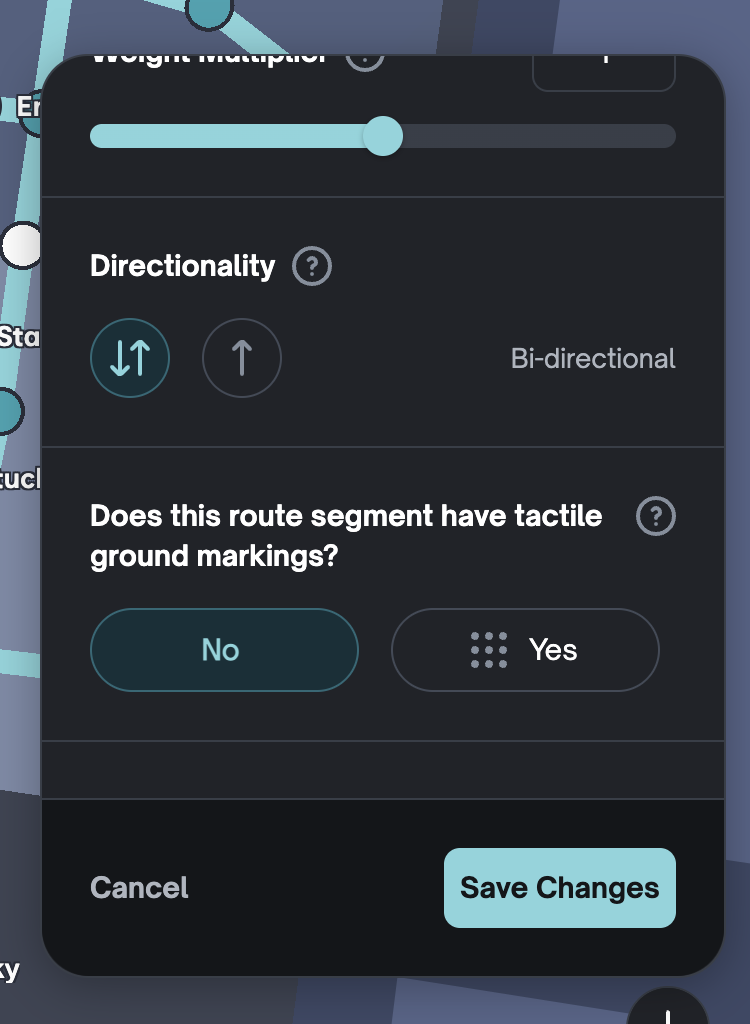
Tactile Markings #
You can mark a segment as having tactile ground markings to show that it includes accessible guidance for people with low vision.
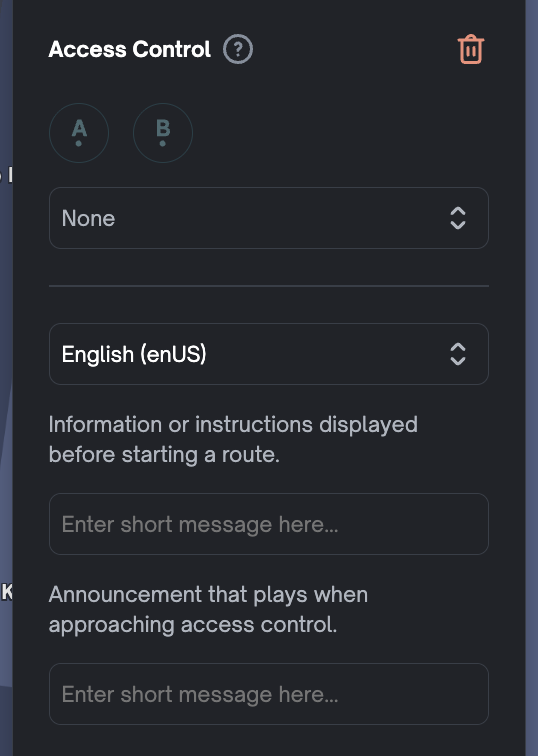
Access Control (in progress) #
Access Control lets you reference things like badges, key cards, security desks, and access mode. Leave this field blank if the path is open to everyone.
Note: While you can add Access Control to a segment currently, this feature is still in progress and is not yet active. You can configure it now, but it will not currently affect routing.
Announcements (in progress) #
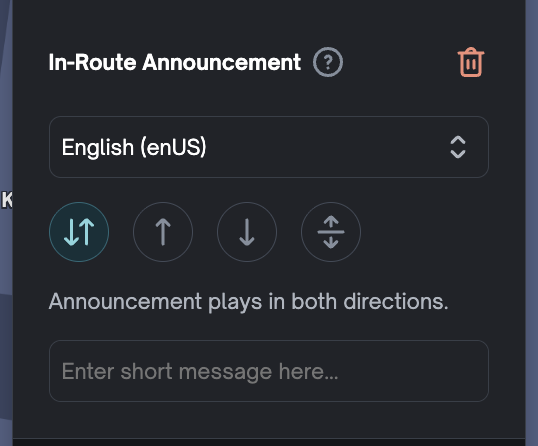
With Announcements, you can choose whether they play for travellers in both directions or only in one direction. You can also provide translations so the announcement is available in multiple languages.
Note: While you can add route announcements here, they are not yet shown to users in the web or mobile app while this feature is in development.
Save Changes #
Click Save to keep your changes, or Cancel to discard them.