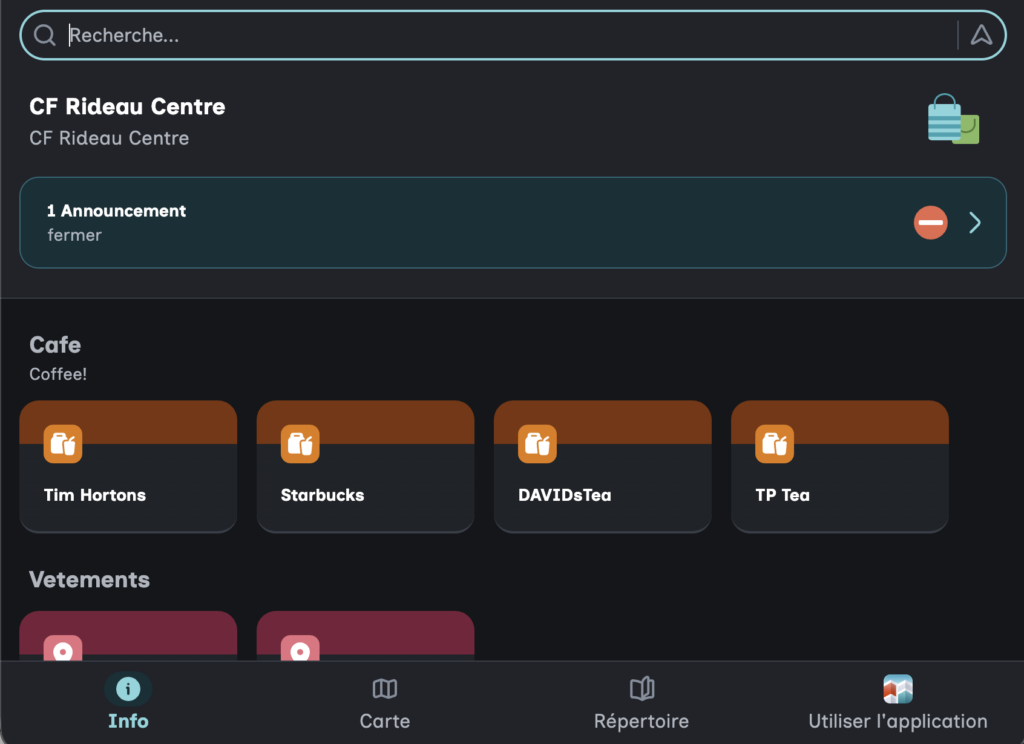
Collections are groups of destinations that are highlighted in the Info tab of both GoodMaps App and Web.
You can have multiple collections of destinations as well as multiple destinations per collection.
Creating a Collection #
- Sign in to your Studio account
- Select the Map you would like to edit
- On the left hand side of the screen click the star symbol
- This will open the Collections settings
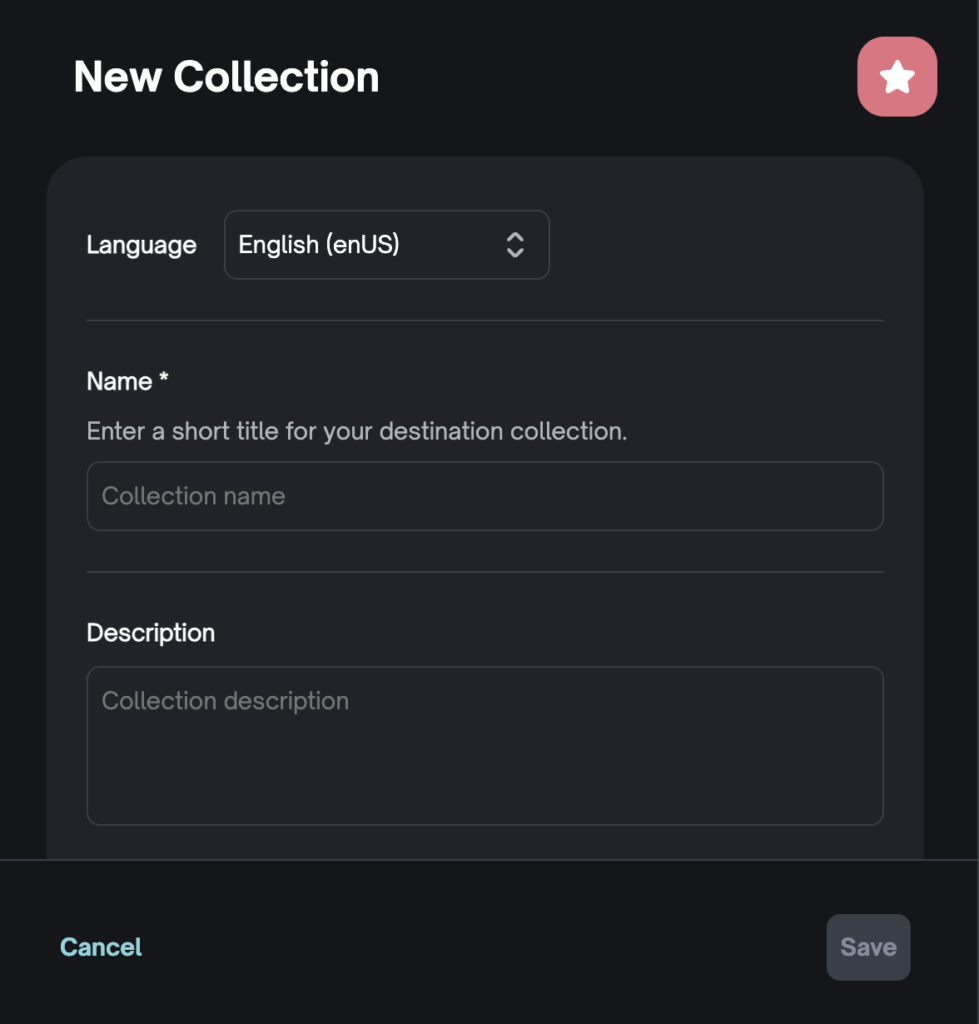
- Click + New Collection
- Enter a name for this collection
- Example: “Coffee & Tea” or “West Hall Exhibits”
- Add a short description for the collection
- Example: “These are all the various beverage shops in the mall!” or “All the exhibits about female artists from Kentucky.”
- Add destinations to the collection.
- Click Save
Viewing a Collection #
- Sign in to your account
- Click on the … link to the right of the map you want to add a collection to
- Click Open Web in the menu
- On the left there is a small module, click Info
- Here you will find a section that lists all destinations, each with it’s own title
- If you click a title, you can find out more about that destination or start a route preview